To update the Sign In link:
- Click on the Customize Design icon (
 ) within the left-hand menu of Zendesk Guide. This will open the Themes page.
 - On the theme you want to edit, click Customize to open it.
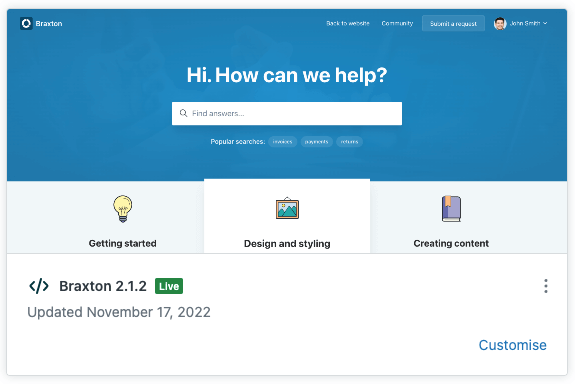
- Click the Edit code button on the bottom-right of the page.
- Select the
header.hbstemplate from the left-hand sidebar menu. - Locate the Sign In link within the header template:
{{#link "sign_in" class='nav-link'}}
  {{t 'sign_in'}}
{{/link}}
To change the link text, replace the {{t 'sign_in'}} translation helper reference with static text or a reference to dynamic content, using the dynamic content helper. For example:
{{#link "sign_in" class='nav-link'}}
  Log in
{{/link}}
To remove the Sign In link entirely, simply delete it from the template.
In some themes the Sign In link code may look a little different, however searching for a link containing the {{t 'sign_in'}} translation helper reference is a quick and easy way to locate it.